Integrating your own Simulink model
Below is a short and practical path: generate code from Simulink, build a dynamic library, and run your model from Python via ctypes.
Goals and requirements
- What you will get:
- Build artifacts from Simulink (
*.c,*.h) and a dynamic library (.so/.dylib/.dll). - A minimal Python script that initializes the model, steps through it, and reads the outputs.
- What is required:
- MATLAB/Simulink with Embedded Coder installed.
- A C/C++ compiler (GCC/Clang/MSVC) and linker utilities.
- Python 3.8+ and
matplotlibfor visualization (optional).
Step 1. Generate C/C++ code in Simulink
- Add
In1/Out1blocks to define the model inputs and outputs. - In the settings, select:
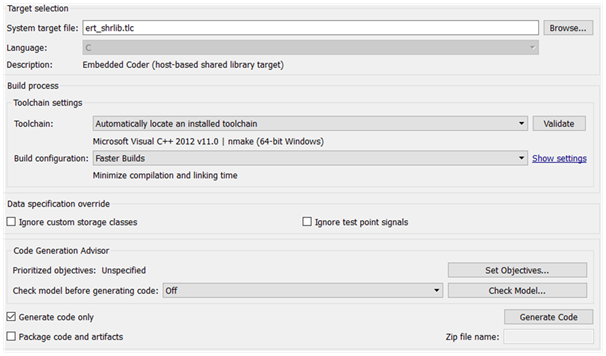
Code Generation -> System target file: ert_shrlib.tlc(Embedded Coder). - Build the model (
Ctrl+Bor the "Build model" button). The*.c,*.h, and other artifacts will appear in the model folder.
Simulation step
The simulation step is set in the Simulink model parameters. It will be used by the step function in the generated code.
Artifact structure and naming conventions
After the build, the model directory will contain files such as:
- Headers:
MODEL_NAME.h, private headers*_private.h, typesrtwtypes.h. - Source files:
*.cwith the implementation and the model step entry point. - Names of global objects and functions:
- Inputs:
MODEL_NAME_U - Outputs:
MODEL_NAME_Y - Initialize/step/terminate:
MODEL_NAME_initialize,MODEL_NAME_step,MODEL_NAME_terminate
Step 2. Build the dynamic library
The build is performed in the directory containing the generated *.c files.
Hint
Sometimes you need to add system libraries (e.g., -lm on Linux). If the linker reports missing symbols, check the build output and add the necessary flags.
Quick check: loading the library
Before integrating into your code, make sure the library loads:
Windows
- On Windows, dependent DLLs may need to be in the same directory or listed in
PATH. - If you see
OSError: [WinError 126] The specified module could not be found, check the locations of all dependencies and the architecture (x64 vs x86).
Step 3. Describe the input/output interface in Python
Open the generated header MODEL_NAME.h and find the External inputs and External outputs sections. Create ctypes structures based on them.
import ctypes
from tensoraerospace.aerospacemodel.utils.rtwtypes import real_T


class ExtU(ctypes.Structure):
    """Model inputs (name, type)"""
    _fields_ = [
        ("ref_signal", real_T),
    ]


class ExtY(ctypes.Structure):
    """Model outputs (name, type)"""
    _fields_ = [
        ("Wz", real_T),
        ("theta_big", real_T),
        ("H", real_T),
        ("alpha", real_T),
        ("theta_small", real_T),
    ]
Names and types
Always take field names and their types from MODEL_NAME.h. The names of global structures and functions use the model name: MODEL_NAME_U, MODEL_NAME_Y, MODEL_NAME_initialize, MODEL_NAME_step, MODEL_NAME_terminate.
Step 4. Example: running from Python
Below is a minimal example that loads the library, executes 2100 steps, and plots the results. Substitute your actual model name and library path (.so/.dylib/.dll).
import os
import ctypes
import matplotlib.pyplot as plt

from tensoraerospace.aerospacemodel.utils.rtwtypes import real_T


class ExtU(ctypes.Structure):
    _fields_ = [("ref_signal", real_T)]


class ExtY(ctypes.Structure):
    _fields_ = [
        ("Wz", real_T),
        ("theta_big", real_T),
        ("H", real_T),
        ("alpha", real_T),
        ("theta_small", real_T),
    ]


# Specify the correct path and library extension for your model
lib_path = os.path.abspath("model.so")   # Linux
# lib_path = os.path.abspath("model.dylib")  # macOS
# lib_path = os.path.abspath("model.dll")    # Windows

dll = ctypes.CDLL(lib_path)

# The name prefix matches the model name in Simulink (here -- "model")
X = ExtU.in_dll(dll, "model_U")
Y = ExtY.in_dll(dll, "model_Y")

model_initialize = dll.model_initialize
model_step = dll.model_step
model_terminate = dll.model_terminate

model_initialize()

wz, theta_big, H, alpha, theta_small = [], [], [], [], []

for _ in range(2100):
    X.ref_signal = -0.1
    model_step()
    wz.append(Y.Wz)
    theta_big.append(Y.theta_big)
    H.append(Y.H)
    alpha.append(Y.alpha)
    theta_small.append(Y.theta_small)

model_terminate()

plt.figure(figsize=(8, 6))
plt.subplot(3, 2, 1); plt.plot(wz); plt.title("$w_z$, rad/s")
plt.subplot(3, 2, 2); plt.plot(H); plt.title("H, m")
plt.subplot(3, 2, 3); plt.plot(theta_big); plt.title("$\\Theta$, rad")
plt.subplot(3, 2, 4); plt.plot(theta_small); plt.title("$\\theta$, rad")
plt.subplot(3, 2, 5); plt.plot(alpha); plt.title("$\\alpha$, rad")
plt.tight_layout(); plt.show()
Common issues and solutions
- "Cannot find
MODEL_NAME_U/MODEL_NAME_Y": - Make sure you are using the correct model name prefix (as in the
.hfile). - Verify that
In1/Out1are present and exported. - Linker error about
mathorsqrt: - Add
-lmwhen building on Linux. - Python crashes when accessing structure fields:
- Check that the
ctypesfield types match those inMODEL_NAME.h. - Make sure the library is built for the same architecture as Python (x64/x86).
Useful links
- Repository with a model example: tensoraerospace/simulink-example
- Converting and running Simulink models: see also the "Simulink to Python" section in the documentation.