SimInTech: what it is and how to quickly create an example
SimInTech is a visual modeling and simulation environment for dynamic systems, featuring a block editor and a built-in scripting language. It allows you to assemble diagrams from standard blocks, describe mathematics in scripts, and run numerical simulations with result saving and visualization.
Goals and requirements
- What you will do:
- Create a project and a minimal diagram.
- Write a script with parameters and state variables.
- Configure blocks and simulation parameters.
- Run the simulation and see the plots.
- What is required:
- SimInTech installed (current version).
- Basic understanding of linear models/state space (optional).
Step 1. Create a project
In the main SimInTech window, click "File" -> "New Project" -> "General model diagram".

Step 2. Add a project script
Click the "Script" button in the project window and create a script. It is convenient to declare parameters here (e.g., matrices A, B, initial condition vector x0, integration step, etc.).

Step 3. Assemble the minimal diagram
Place the necessary blocks on the project canvas:
- "Constant" from the "Sources" group -- setting the input signal;
- "State Variables" from the "Dynamics" group -- implementing the system state (x_dot = Ax + Bu);
- "Time Plot" from the "Data Output" group -- visualizing signals.
Connect the blocks with signal lines according to your structure (e.g., input U -> "State Variables" -> outputs X to the plot).

Step 4. Configure the "State Variables" block
Open the block parameters and initialize the fields with values from the script:
- "Initial conditions" ->
x0; - "Matrix A (Nx*Ny)" ->
A; - "Matrix B (Nx*Nu)" ->
B(andC,Dif needed).
Check the matrix dimensions and consistency with the diagram.

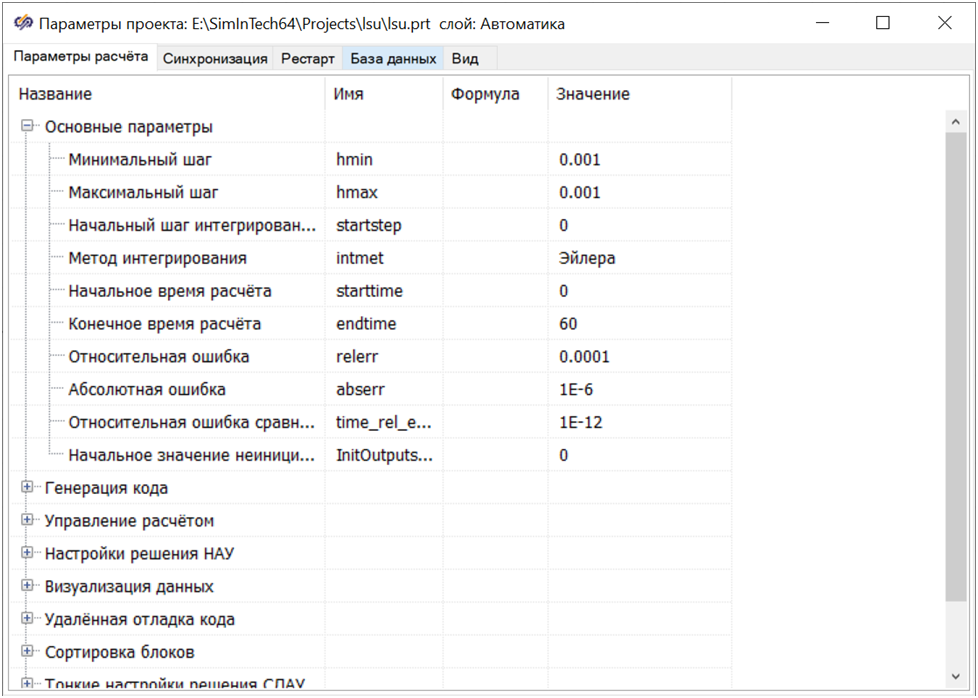
Step 5. Set the simulation parameters
In the project window, open "Simulation Parameters" and configure:
- Simulation time interval (t0, t_end);
- Integration step/method (fixed/variable);
- Result saving frequency.
Step 6. Run the simulation
Click the "Run" button. Make sure the plots show the expected behavior. Adjust the parameters as needed and re-run the simulation.
Useful to remember
- Save the project before running to preserve script changes.
- For "stiff" systems, reduce the integration step or change the method.
- Label signals and axes -- this will make result analysis easier.
Common issues and solutions
- "Variable not found" at runtime:
- Check that the variable name matches exactly and is defined in the script before the run.
- Empty plots:
- Verify the connections between blocks and the selection of displayed signals.
- Matrix dimension error:
- Compare the sizes of
A,B,C,Dwith the number of inputs/outputs of the "State Variables" block. - Simulation is too slow:
- Increase the step size (if acceptable) or simplify the model to the necessary minimum.
What's next
- Integrating results and models with Python: see the "SimInTech to Python" section -- simintechToPython.md.
- Examples of systems and controllers in TensorAeroSpace -- the "Examples" section in the documentation.